





An Amazon Brand Store gives sellers a powerful way to showcase their products in a customized and visually appealing format. With an Amazon Brand Store, brands can create a curated shopping experience that highlights their unique identity and product range. By designing a strategic Amazon Brand Store, sellers can engage shoppers, build trust, and increase conversions. In this guide, we’ll explore real examples and show you step-by-step how to create a winning Amazon Brand Store that stands out.
Before diving into the creation process, let’s look at a few exceptional Amazon storefronts for inspiration:
1. Lego
2. Apple
3. Nike
These examples demonstrate the importance of maintaining brand consistency, using high-quality visuals, and providing an intuitive shopping journey.
Organizing products is essential for a user-friendly storefront. Depending on your product range, follow these guidelines:
To get started, list ASINs and group them into logical categories that align with your customers’ shopping preferences. Ensure the structure is intuitive to improve user experience and drive conversions.
To begin setting up your Amazon storefront, follow these steps:
1. Log in to your Amazon Seller Central account and navigate to the “Manage Stores” section.
2. Click “Create Store” and select your brand from the list. Note that your brand must be enrolled in the Amazon Brand Registry to appear.
3. Enter your brand’s display name and upload a high-resolution logo.
4. Click “Next” to enter the Store Builder interface.
This foundational setup ensures that your storefront reflects your brand identity from the start.
A well-thought-out layout is crucial for attracting and retaining customers. Here’s a proven structure to consider:
Assets like high-quality images, videos, and product descriptions bring your storefront to life. Here’s how to maximize their impact:
Once your storefront design is complete:
Key metrics to track include:
Use these insights to refine your storefront and enhance its effectiveness.

Q1: What are the eligibility criteria for creating an Amazon Storefront?
To create an Amazon Storefront, your brand must be enrolled in the Amazon Brand Registry and have a Professional Seller Account or vendor registration.
Q2: How can I add new pages or sub-pages?
Use the Store Builder’s “Add Page” feature to create new pages or sub-categories. Drag-and-drop functionality allows for easy organization.
Q3: How do I measure storefront performance?
The Store Insights Dashboard provides data on traffic sources, page views, and customer engagement. These metrics help identify areas for improvement.
Q4: What types of tiles can I use?
Available tiles include:
Q5: Does the Amazon brand store impact SEO?
While storefronts do not directly affect Amazon SEO, they can appear in Google search results. Optimizing meta descriptions can help attract external traffic.
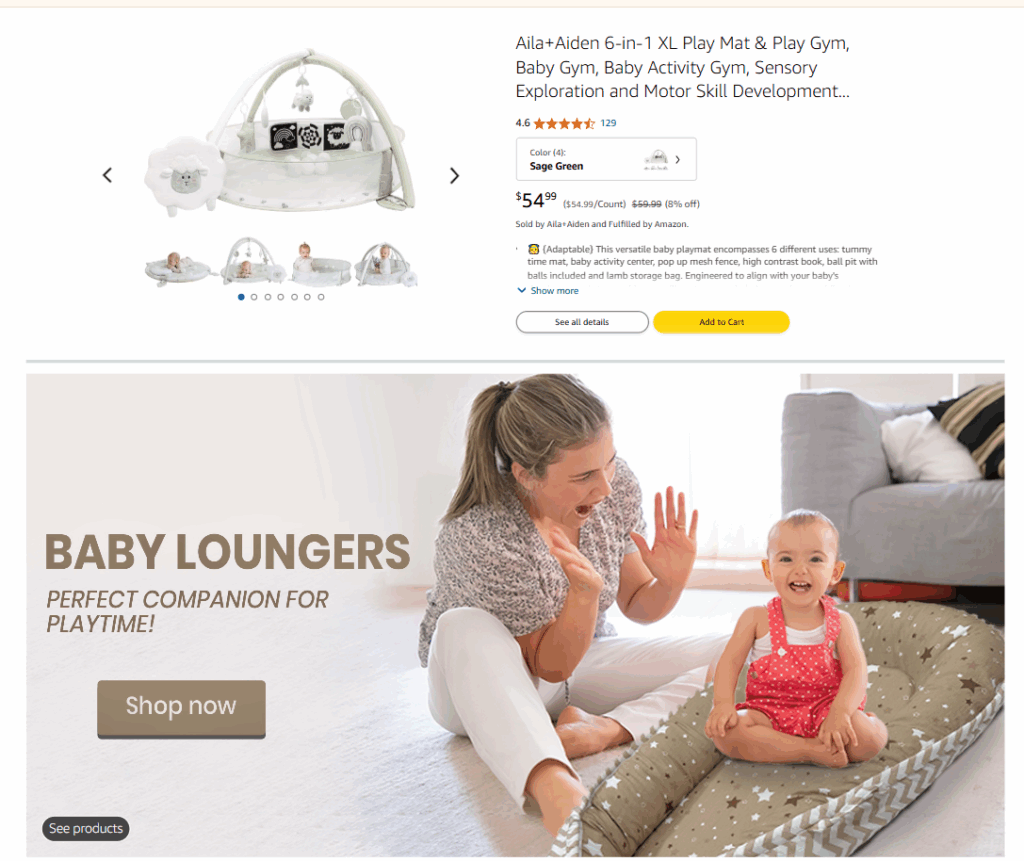
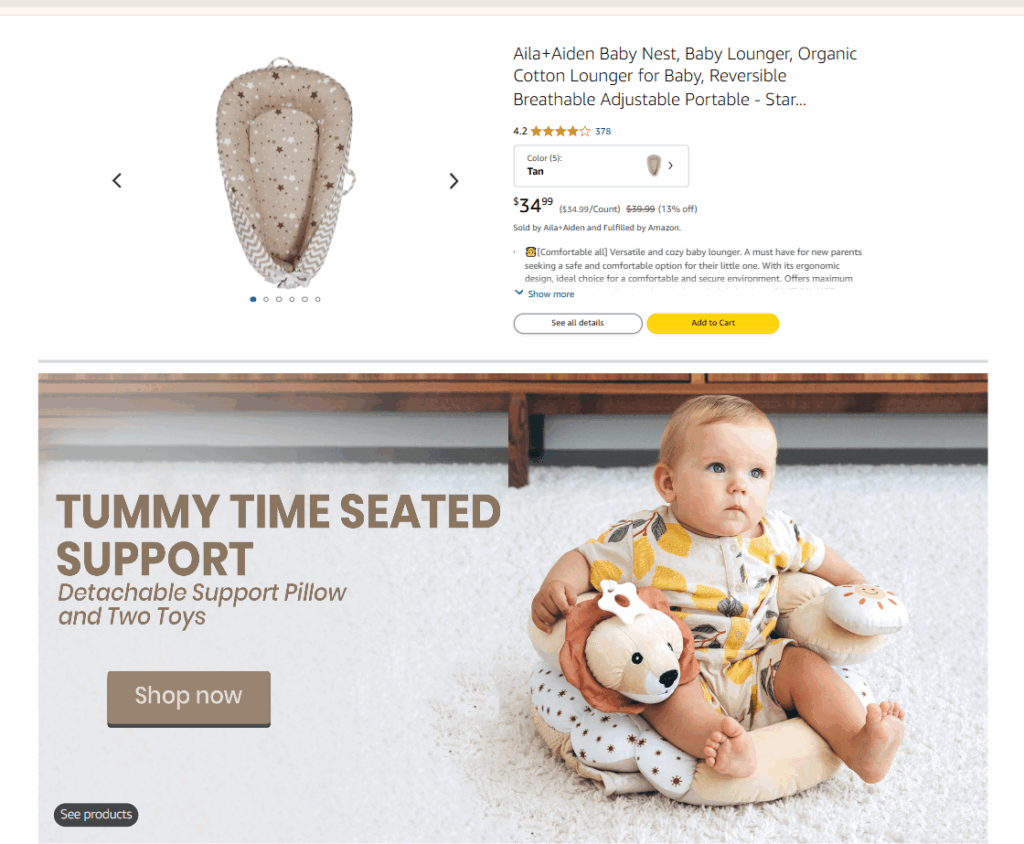
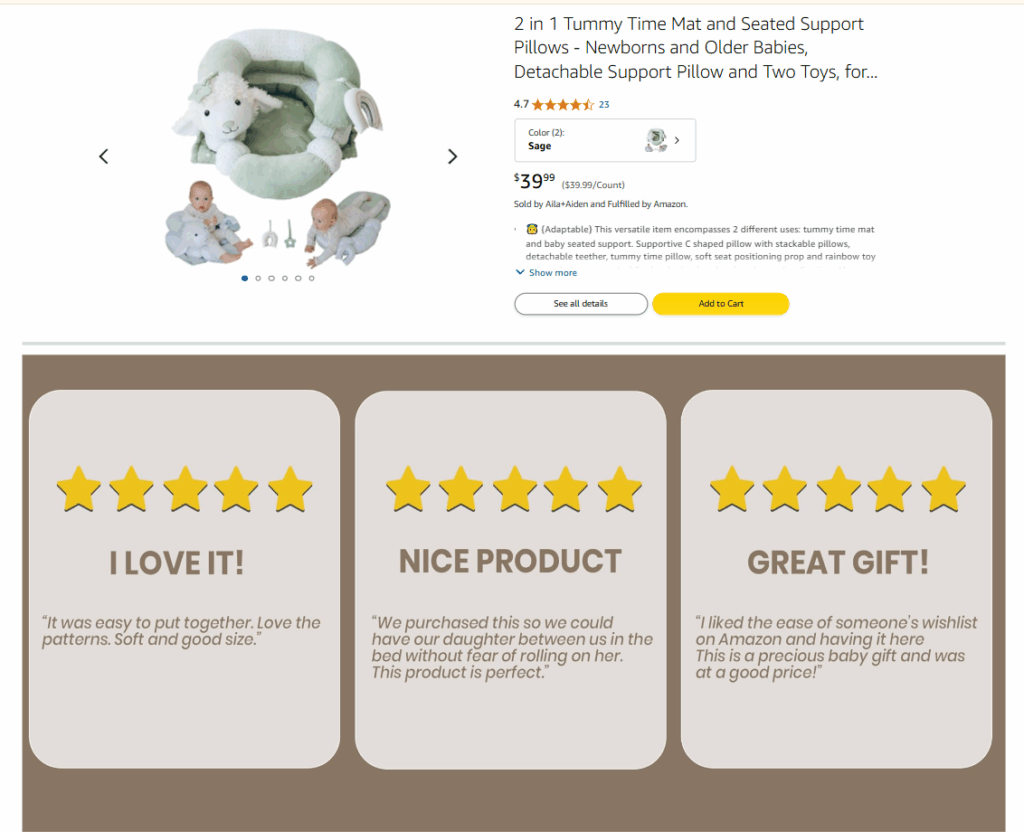
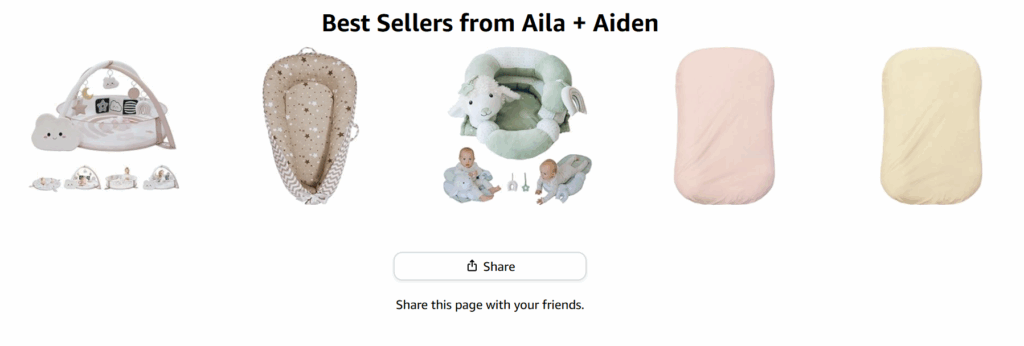
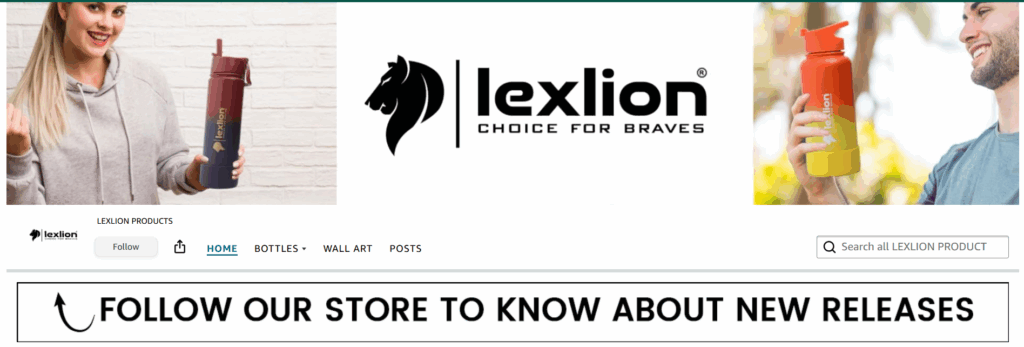
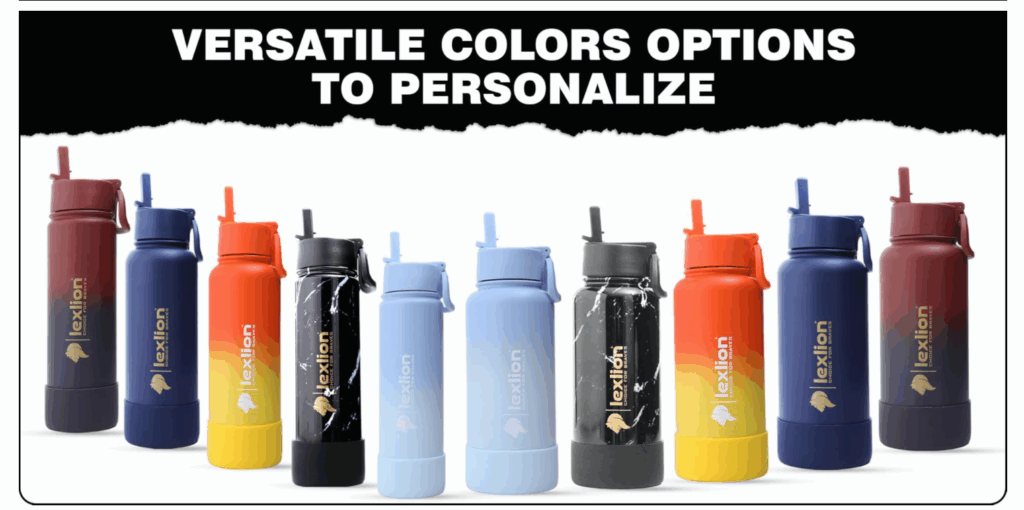
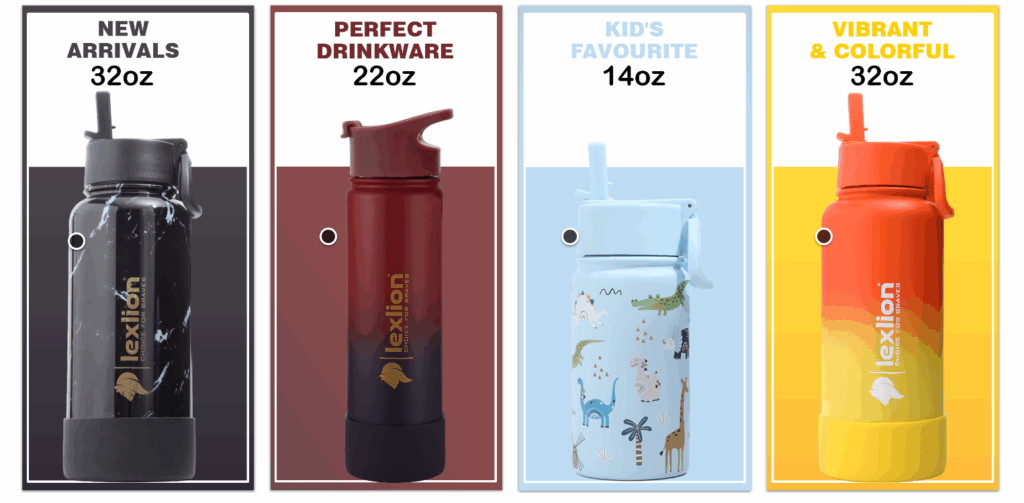
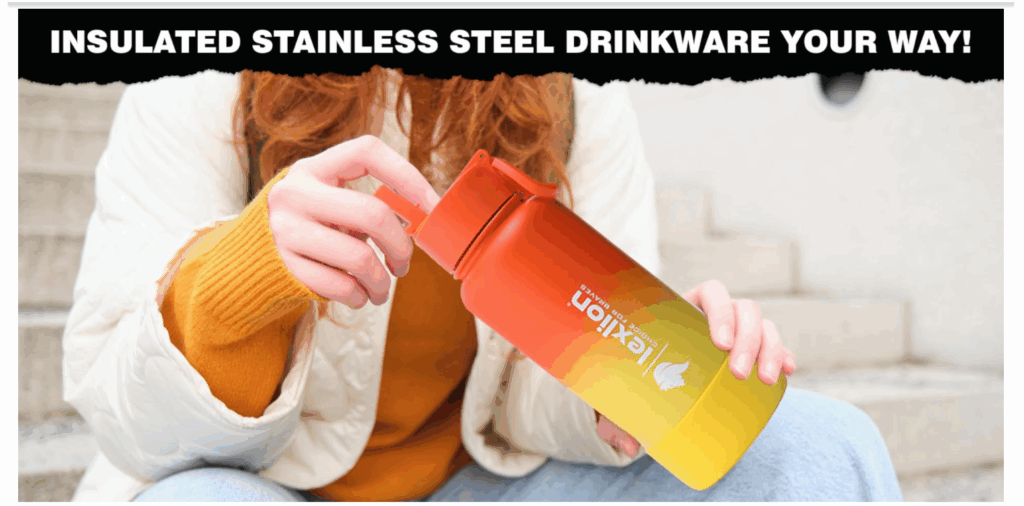
2. Lexlion Store
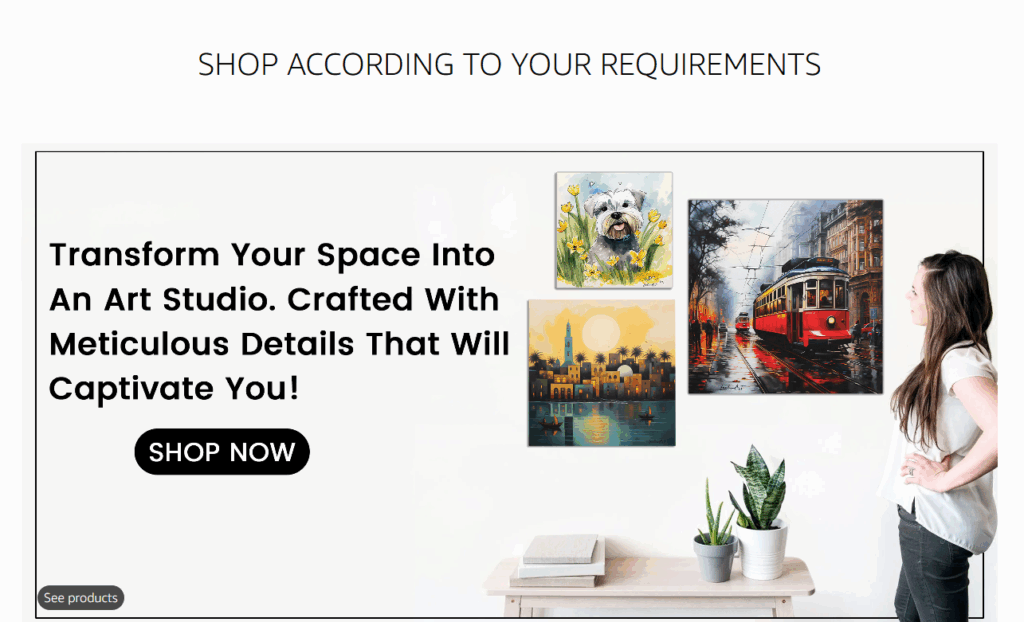
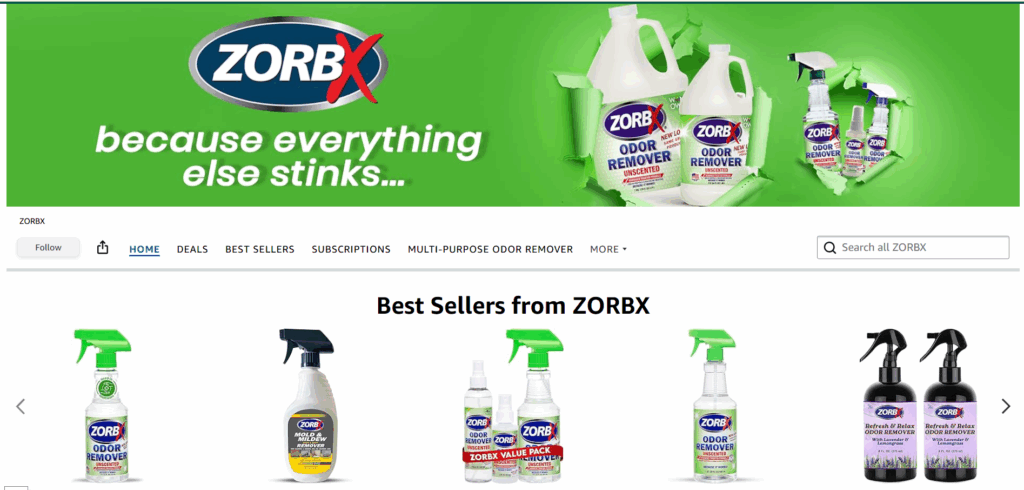

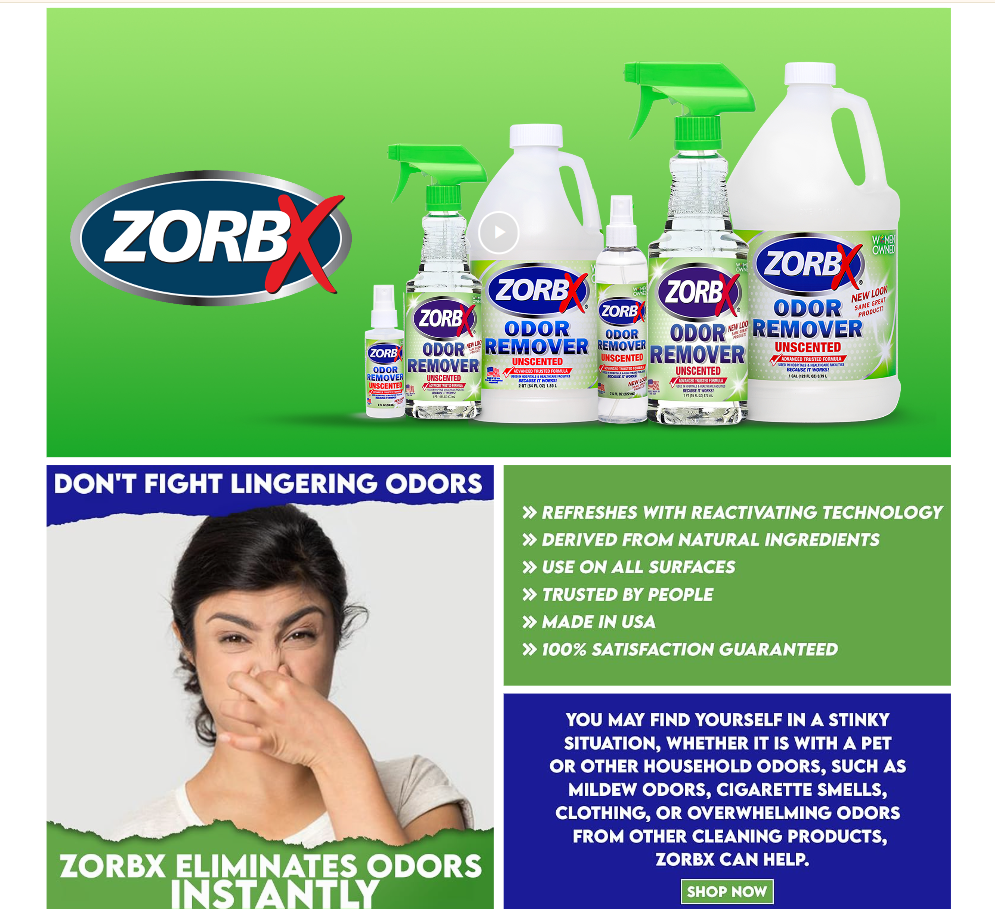
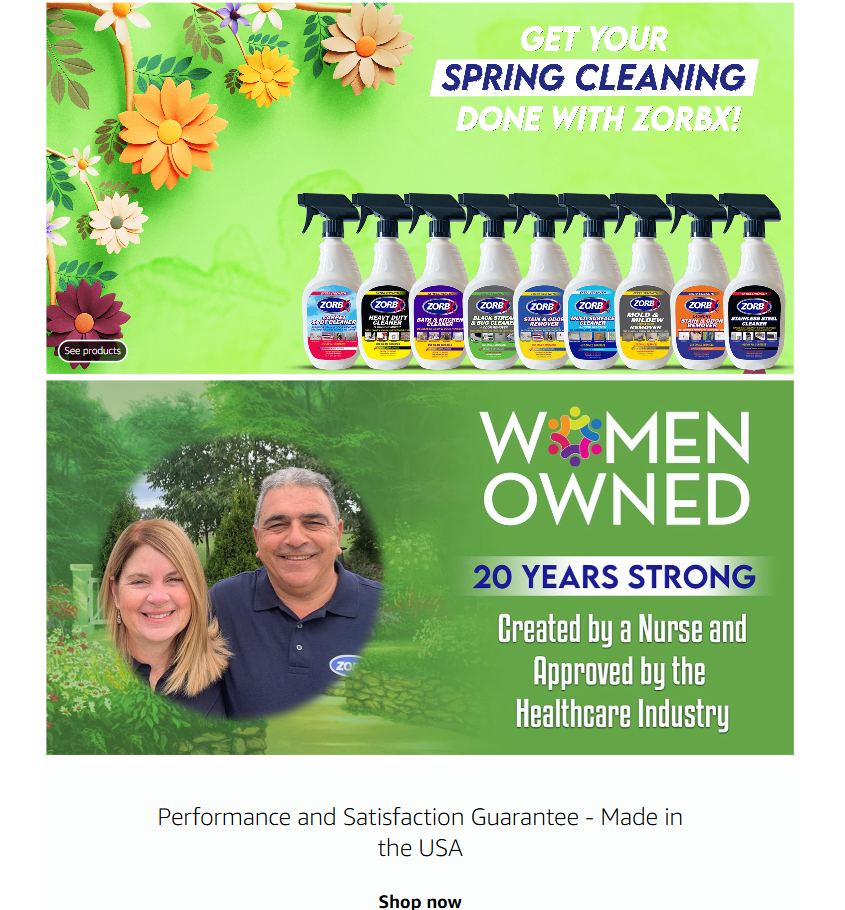
Creating a captivating and well-organized Amazon Storefront is a strategic way to highlight your brand, engage customers, and boost sales. With the right structure, compelling visuals, and clear navigation, your storefront can become a vital tool for showcasing your products and creating a memorable shopping experience. From dividing your products into intuitive categories to optimizing your layout with banners and product grids, every step contributes to building a winning store.
If you’re looking for expert guidance on building or optimizing your Amazon Storefront, SIPRANSH ECOMMGROWTH is here to help. As specialists in Amazon SEO and e-commerce solutions, we offer tailored strategies to enhance your brand’s visibility and drive sales. With our expertise, you can create a storefront that not only represents your brand identity but also converts visitors into loyal customers. Let us help you unlock your full potential on Amazon.
The new Customer Service Quality Insights dashboard on the Feedback Manager page shows your customer service performance data for Fulfilled by Merchant orders and compares it to that of other sellers. With this data, you can identify where you may be able to provide an even better customer experience.
The Customer Service Quality Insights dashboard shows the following metrics for the last four weeks:
To learn more, go to Customer service insights on Feedback Manager.
Set up push notifications on your phone with the Amazon Seller app to get instant alerts about critical issues that could impact your selling account.
You can now get alerts on your phone for items that may require your immediate attention, such as account health issues or transaction notifications that could affect your sales.
To get notifications on your phone, do as follows:
To download the Amazon Seller app, go to the iOS app store or Android app store.
We made important changes to jewellery listings in August 2025 that affect how you create and manage your products on Amazon stores. The new classifications streamline the listing process, help make your products more visible in customer searches and may reduce customer returns.
The following attribute changes apply to new listings:
New mandatory classification
You must now classify your jewellery as either “fine” or “fashion” using the new “jewelry_material_categorization” attribute. This classification will automatically show you relevant options, which can reduce listing creation time.
New listings without this classification will be suppressed until they are updated
Existing listings that didn’t have this classification before August 31, 2025, will not be suppressed, but we strongly recommend that you update your catalogue to reflect these changes.
Updated pearl requirements
The following industry-standard attributes for pearl listings are now required: pearl luster, shape, minimum colour, type, size per pearl and number of pearls.
The following attributes are optional: stringing method, surface blemishes and uniformity.
Updated material and metal requirements
The following attributes for material and metal type are now required: metal type and metal stamp.
The following attribute is optional: metal weight.
Next steps
For more information, go to Jewellery product data guidelines.
As the holiday season approaches, we recommend that you monitor your Account Health Rating (AHR) to quickly address any issues that may result in your account being deactivated.
AHR is a colour-coded score ranging from 0 to 1,000 that indicates your selling account’s risk of deactivation based on your compliance with our selling policies. Your AHR provides a status of your account’s health and considers factors such as the number of unresolved account health issues, their severity (critical, high, medium and low) and how negatively the violation affects customer experience.
If your AHR falls below 100 points, your account is at high risk of deactivation. You lose points when new policy issues are detected and recover points when you successfully address those violations. Once we’ve confirmed that the violations have been addressed, your AHR will be updated within a few hours. You can also gain four points for every 200 orders fulfilled.
To maintain a healthy AHR and keep your account active for the holiday season:
To learn more, go to Account Health Rating programme policy.
Fulfilled by Merchant (FBM) Ship+ is a new fulfilment solution for your Fulfilled by Merchant shipments.
FBM Ship+ gives you faster shipping options at lower costs with discounted rates from our partner carriers and cashback on your Fulfilled by Merchant orders. It also shows customers more accurate delivery dates based on carrier delivery performance.
FBM Ship+ is now available for Fulfilled by Merchant shipments from China to the United Kingdom, France, Germany, Italy, Spain and Japan.
With FBM Ship+, you’ll receive the following benefits:
To receive these benefits and earn cashback, you must purchase Yun Express shipping labels on Amazon Buy Shipping and ship within one working day. Earned cashback will be added to your Seller Central account balance.
If you’re not currently using Yun Express, you’ll need to set up a carrier account with Yun Express and schedule parcel pick-up or drop-off for timely shipping.
To enrol, go to FBM Ship+.
For more information, go to FBM Ship+.


